> ## Documentation Index
> Fetch the complete documentation index at: https://macstadiuminc-fix-cloud-provider-accuracy-di570.mintlify.site/llms.txt
> Use this file to discover all available pages before exploring further.
# Creating Slack Tickets
> Create support tickets directly from Slack using MacStadium's Slack-to-ticket service, available on Pro and Premium support plans.
MacStadium offers a shared Slack channel for team communications if you are on the Pro or Premium support plan. The Slack-to-ticket service uses Zendesk and Zapier with Slack to make ticket creation and communication seamless between Slack, the ticketing system, and your MacStadium Portal.
## Getting Started
To start a ticket from Slack follow these easy steps:
Our Slack-to-ticket integration does not work with Slack direct messages, only channels.
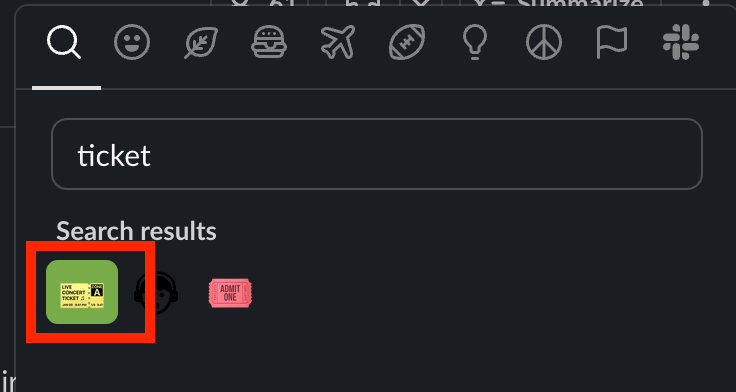
1. Add the ticket emoji (*ticket*) to the message as a reaction.
 2. After adding the ticket emoji reaction, a message is sent to you in a thread in response prompting you to create a ticket.
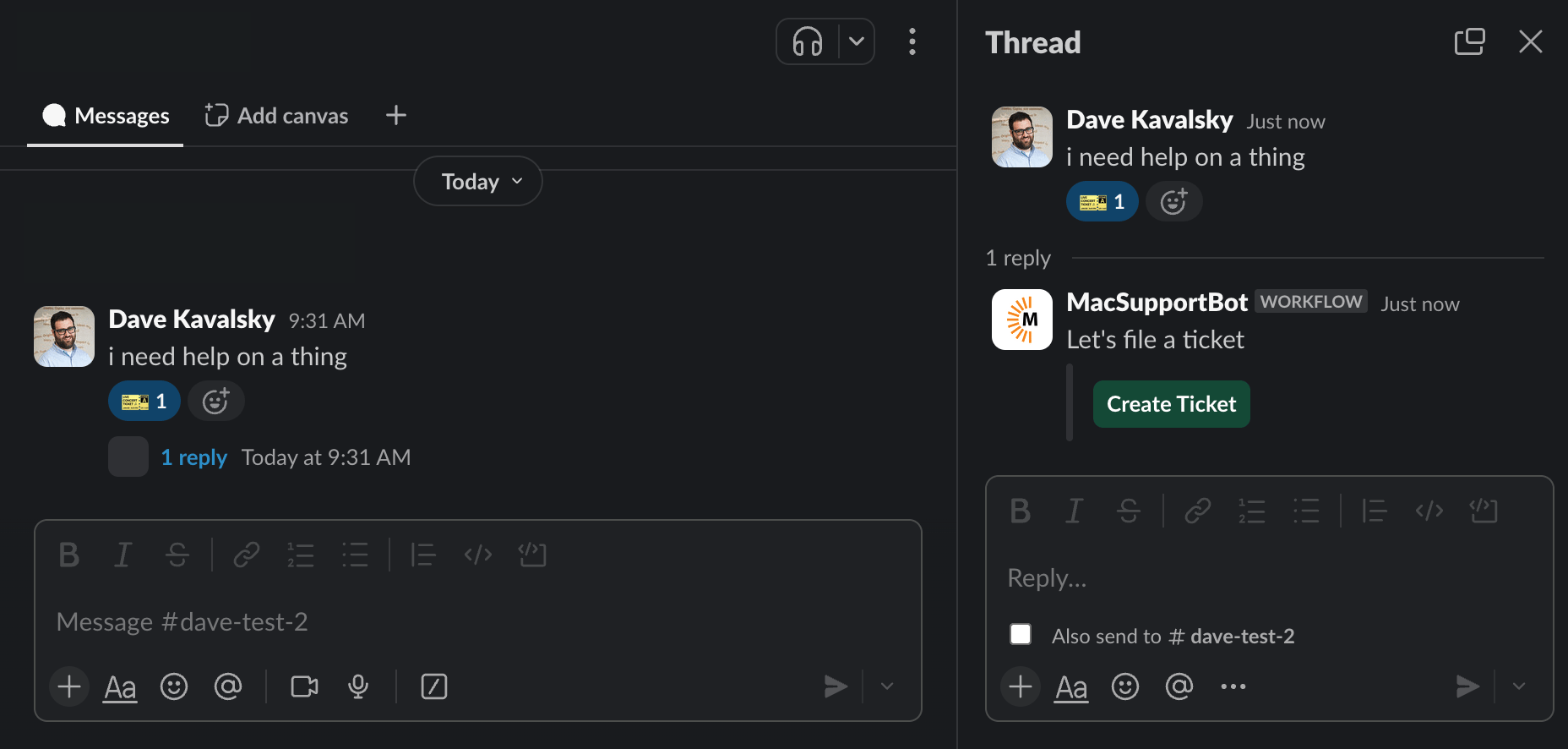 3. Click the Create Ticket button to open a quick form where you will enter key details about your request.
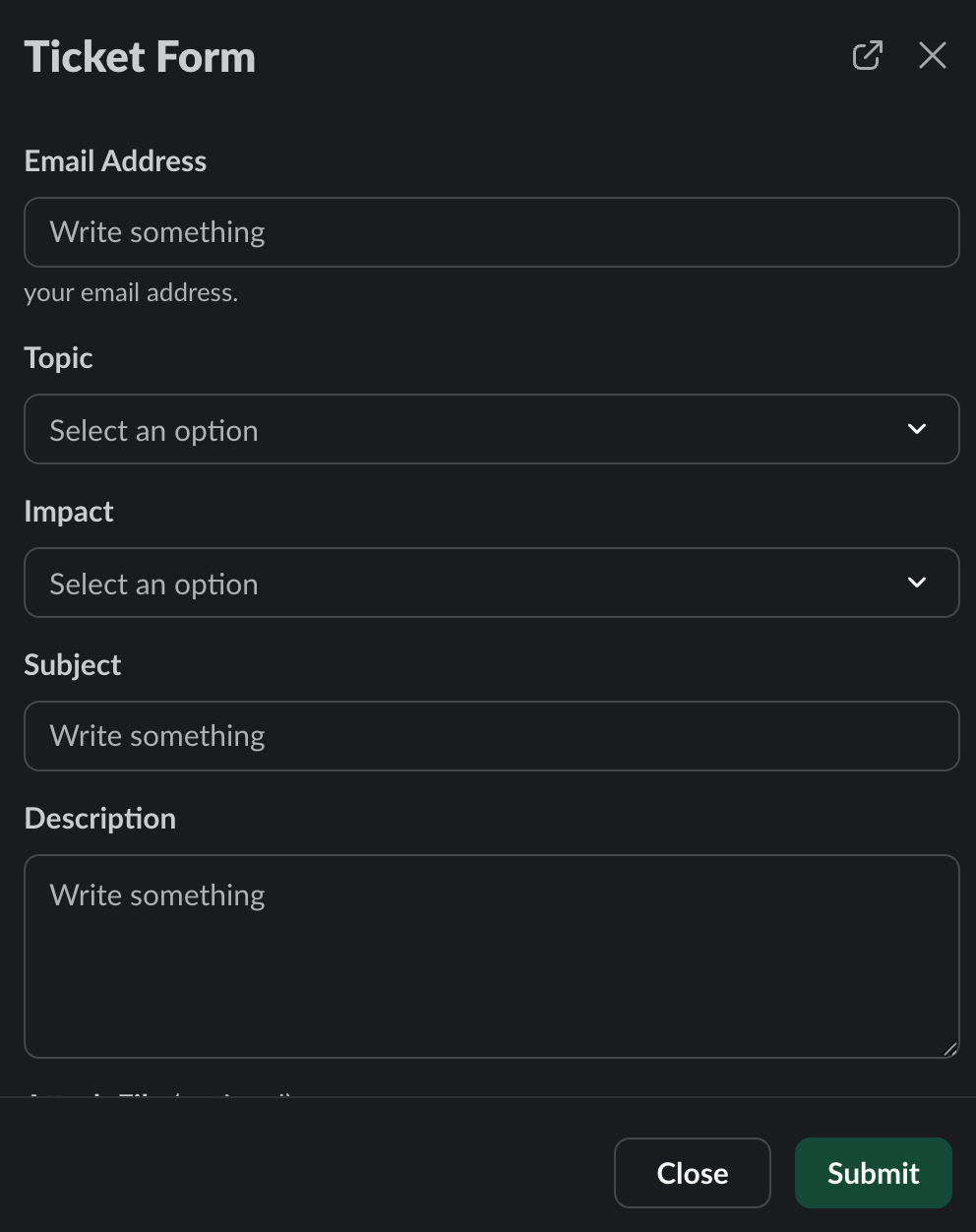 4. After filling out the form, click Submit to create a ticket that goes to the MacStadium support team.
* **Email Address** - enter your email address
* **Topic** - select the topic your issue/request is related to
* **Impact** - specify how much this issue is impacting your team
* **Subject** - subject line for ticket
* **Description** - describe the issue/request
5. After submitting the form, you will receive a message that is only visible to you in the channel which confirms that the ticket has been submitted successfully.
4. After filling out the form, click Submit to create a ticket that goes to the MacStadium support team.
* **Email Address** - enter your email address
* **Topic** - select the topic your issue/request is related to
* **Impact** - specify how much this issue is impacting your team
* **Subject** - subject line for ticket
* **Description** - describe the issue/request
5. After submitting the form, you will receive a message that is only visible to you in the channel which confirms that the ticket has been submitted successfully.
 6. You can now add comments to the thread that created the ticket. All comments in the thread are pushed to the Zendesk ticket. When a MacStadium team member replies, the response appears in the same Slack thread, via email, and in your MacStadium Portal ticket.